
A different Type, Profile or Authority in two apps can leave you wondering which reading to trust. Before buying another report, make the disagreement specific and check the information behind each chart. Changing one field at a time gives you a clearer support question than collecting more conflicting screenshots.
This is a researched troubleshooting guide, based on provider documentation checked October 6, 2026. We have not reproduced a discrepancy in these apps or independently audited their calculations.
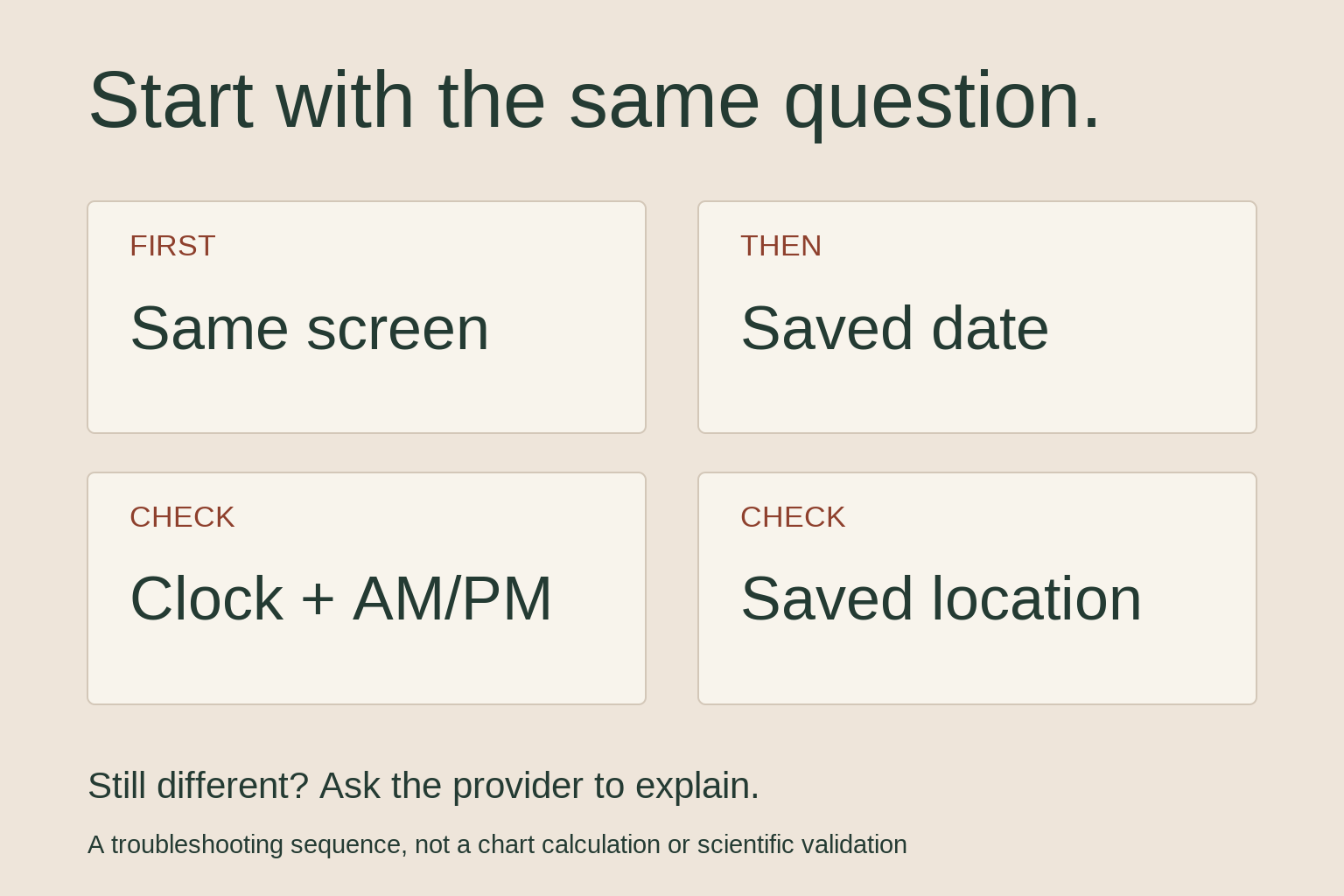
First, sort the disagreement into three kinds
“Different charts” can describe several problems. Start with the smallest statement that captures what you can actually see.
| What you notice | What to compare first | What to avoid assuming |
|---|---|---|
| The same label has different explanatory text | The label itself, then the explanation’s author or format | Different wording proves different calculations |
| A label or number is different | Saved inputs and the exact chart screen | The more flattering result is correct |
| One app shows extra information | Whether you are viewing the same kind of result and access level | Missing information is contradictory information |
This is a sorting exercise, not a diagnosis of either app. If one screen shows a description and another shows a chart, first find the matching view. You need two comparable results before you can investigate their difference.
For example, imagine that both apps show the same Profile, but one describes it in a short paragraph while the other presents a longer lesson. Your immediate question is about interpretation or presentation. If the displayed Profile itself changes, the input checklist below is the more useful starting point.
1. Identify exactly what differs
Put the two results beside each other and name the difference. Is a chart label different, or are the apps using different words to explain the same label? A change in descriptive wording does not, by itself, establish that the underlying calculation changed.
Record the actual result in each app: for example, the displayed Type or Profile. Avoid reducing the problem to “the readings feel different.” Also note the product name and which screen you are viewing, so support can identify the result you mean.
2. Check the date and clock format
myBodyGraph’s official discrepancy guidance starts with identical inputs, particularly day/month order and 24-hour versus AM/PM entry. It recommends contacting support when differences remain.
Write the month in words before comparing entries. In a fictional example, “March 4, 1990” avoids the ambiguity of “03/04/1990.” For the time, write both forms: “8:15 p.m. / 20:15.” Check what each form actually saved, rather than relying on what you intended to enter.
Then reopen the chart. Keep the original screenshot, label the corrected version, and record whether the specific disagreement disappeared. This gives you a small audit trail without changing several things at once.
A fictional example: two small entry choices
Suppose your private note says “March 4, 1990, 8:15 p.m.” One form has separate month and day boxes; another displays a slash-separated date. A screenshot of the second form shows “04/03/1990,” but you have not checked which order it expects.
Your first job is to establish what that form means. Do not convert the date by intuition. Read the field labels, then record the saved date with the month written out. Next, inspect the clock: 08:15 and 20:15 describe different times, even though both contain the same minutes.
Change one confirmed error, reopen the result, and record what happened. Then address the next confirmed error. This example supplies no calculated chart or promised outcome; it demonstrates how to turn an unclear mismatch into a repeatable sequence.
If everything already matches, write “checked—no change needed.” A useful investigation can eliminate a suspected cause without finding the answer immediately.
3. Inspect the location selection
The My Human Design chart form explains that it uses birthplace to determine the time zone. If a town is missing, its instruction is to choose a nearby city in the same zone. That is this provider’s guidance; check the other app’s instructions separately.
Compare the saved city, state or region, and country. Do not assume two autocomplete results with the same city name refer to the same place. If the location or time-zone selection is unclear, ask support before manually shifting the birth time to make the results match.
Why today’s time zone is not the whole story
The IANA Time Zone Database tracks historical local-time rules as well as changes to offsets and daylight saving. That is why a present-day clock setting is not enough to independently check a historical timestamp.
This does not establish that either app has a time-zone bug. It gives you a more precise support question: “Which time zone and offset did this saved location use for that birth date?” If the provider exposes those values, record them. If it does not, ask rather than supplying an offset you found for today.
An apparent one-hour discrepancy is a detail worth mentioning, not proof of its cause. Avoid repeatedly adding and subtracting an hour until the chart looks familiar. That can make two outputs agree while leaving the underlying question unanswered.
4. Keep uncertain information marked as uncertain
Separate “I entered the wrong time” from “I do not know the time.” Correcting a typo and selecting a plausible estimate are different actions. Write down where your time came from and whether it was recorded precisely, rounded or remembered approximately.
If an app accepts an estimate, preserve that label in your notes. Getting two apps to agree on the same estimate does not establish that the estimate is your actual birth time. Do not choose a time simply because you prefer the resulting description.
5. Check before replacing a purchased chart
myBodyGraph says existing chart birth details require a support correction. A newly created chart does not automatically inherit purchases from the old one. If you paid for analysis, mention that in the correction request before buying it again.
For another provider, find its own correction and purchase-transfer instructions. Keep the original record until you understand what replacing or deleting it would do.
Find your next check.
You don’t need to enter your birth details. Describe the disagreement and mark what you have already checked.
A troubleshooting sequence, not a chart calculation. Your choices stay in this page.
Your comparison worksheet
Copy this into a private note. You do not need to send your birth information to Chart & Ritual.
| Check | App A | App B |
|---|---|---|
| Product, website and screen | ||
| Date, with month written out | ||
| Time, including AM/PM | ||
| Time known precisely or estimated? | ||
| Saved city, region and country | ||
| Exact label that differs | ||
| Result after correcting one input | ||
| Purchase attached to this chart? |
For a public example, use invented details. If you share screenshots, remove unrelated personal information and other people’s charts.
Decide what to do with the result
After using the worksheet, choose one of these next steps:
- A saved input was wrong: follow the provider’s correction process and compare the corrected result.
- The inputs match but the labels differ: stop editing and ask for an explanation with the records you gathered.
- Only the prose differs: compare teaching style and source material rather than treating it as a calculation error.
- The birth time remains uncertain: keep that uncertainty visible. An unanswered question is preferable to an invented certainty.
You do not need to settle every disagreement before deciding whether an explanation is readable or whether an app is useful for a modest reflective practice. You do need to keep those judgments separate from a claim that its chart has been independently verified.
When to contact support
Once the saved inputs match, send a short, concrete request through the provider’s official support channel:
I compared these two products using the same saved birth details. The specific difference is [field and results]. I checked the date format, AM/PM and selected location. Can you help me confirm the inputs and explain this discrepancy? I have [purchase, if relevant] attached to the existing chart.
Supply private details only through the provider’s appropriate channel when needed. Avoid posting the full support packet in a public forum.
If support cannot explain the difference, leave it unresolved rather than treating your preferred answer as verified. Our before-you-subscribe checklist can help you decide whether a paid feature serves a clear purpose. Buying a more expensive reading is not a troubleshooting step.
If the product names are also confusing, our My Human Design vs Human Design App comparison identifies the two providers and their published features.
Provider instructions and a time-zone reference were checked October 6, 2026. The troubleshooting sequence, worksheet and fictional example are our original teaching material; they do not reproduce an app defect or calculate a Human Design chart.